Help, right when you need it.
Find the next step for your team. Start with the SWMS Online guidance below, or contact Assurepro for help with another product.
Set up the organisation owner
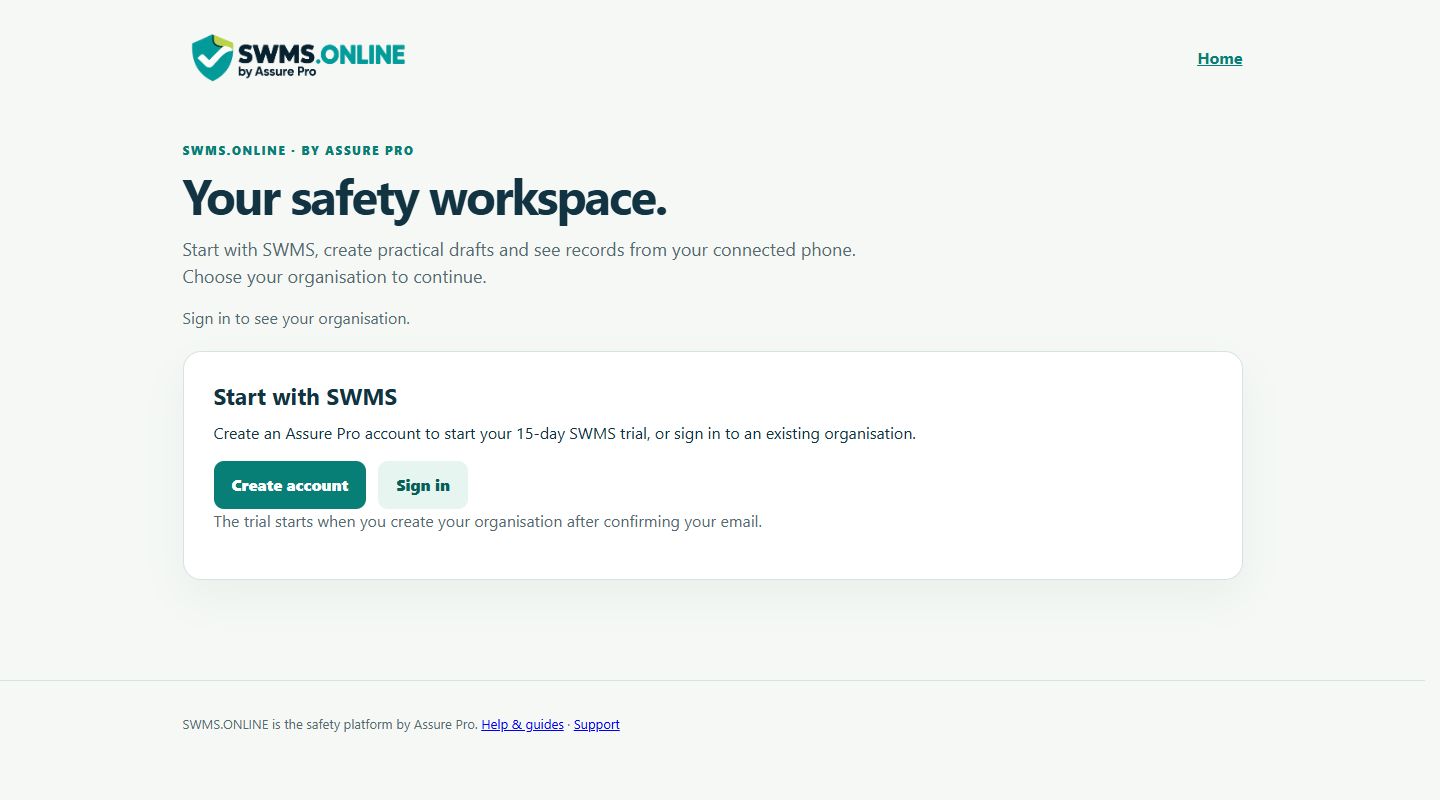
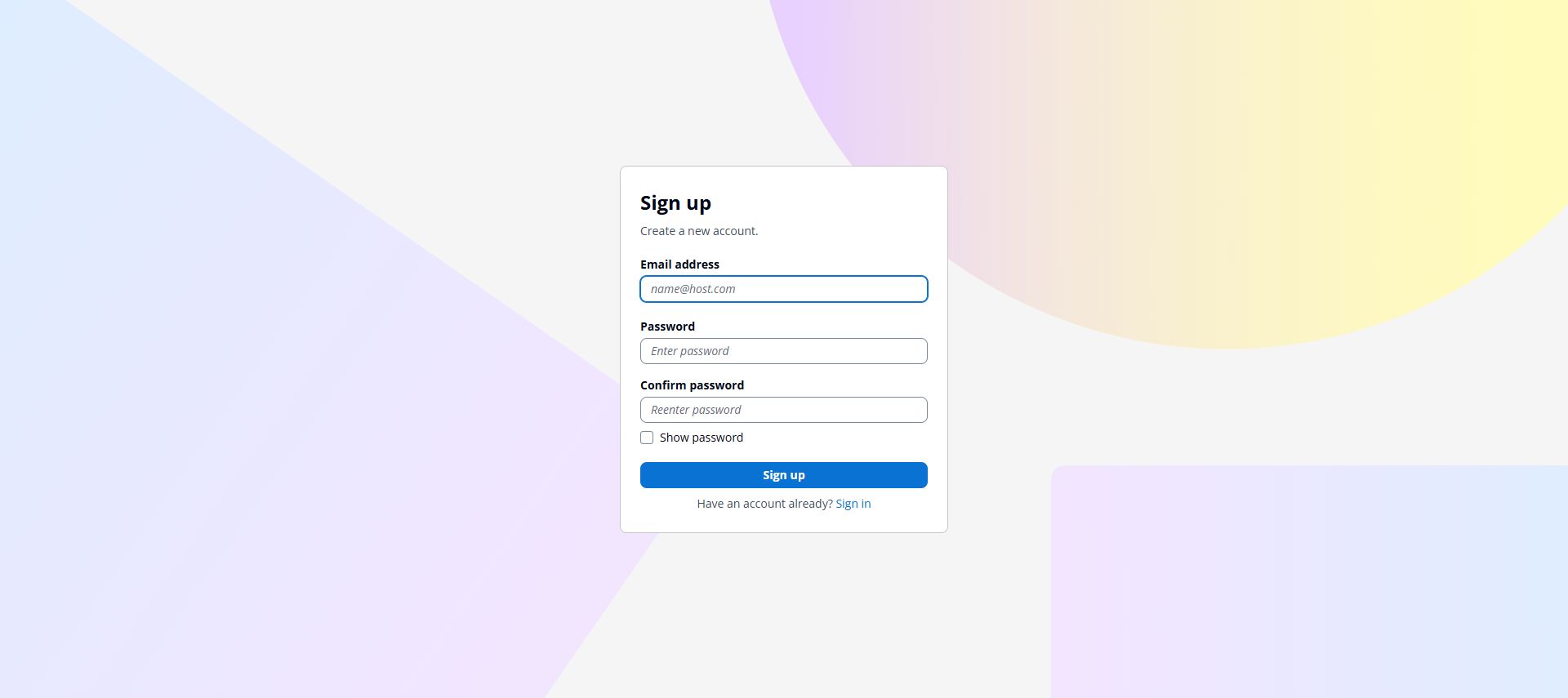
- Open Client sign in and choose Create account. Use the nominated owner's own work email.
- Set a password and verify the code sent to that email. Keep passwords and codes private.
- Enter the agreed business name and start its 15-day SWMS trial. The account creating the organisation becomes its owner.
- Check that the organisation selector shows the correct business and owner. Create a fictional test draft, save it and reopen it after refreshing.
- Agree your operational start date and available modules with Assurepro before adding real safety records.
Give each person their own access
Owners and administrators can create individual links under Invite someone to this organisation. Choose Standard user, Supervisor, Manager or View only. Under Modules & reporting, select the modules and reporting access the person needs. New invitations start with SWMS only and reporting off.
Each link works once and expires after 48 hours. Send it privately to the intended person; anyone holding the link can claim it after signing in. Review People with access and cancel misdirected links.
In People with access, select a role and modules, then Save access. Use Remove access → Confirm remove access for departures, or Restore access to reactivate the selected permissions. Only the owner can appoint or manage an administrator.
Module permissions apply across the organisation’s sites and still require an active subscription. Confidential cases need their own permissions. Removing access does not erase copies already downloaded to a device.
Use the Android app
Get the current build from the Android download page. Administrator access requires the private code from Assurepro.
Open Menu → App & files → Assurepro cloud, sign in and select your organisation. Check the cloud status before assuming saved phone work has reached the web.
Use Android 9 or later and install updates over the existing app to preserve local work. If an update reports an incompatible signature, contact support before making changes.
Open the same workspace on web and phone
- Sign in, select your organisation and find Connected workspaces. Open your team's workspace, or create one with its first workplace.
- On a new phone, choose App & files → Assurepro cloud → Choose organisation → Open company workspace. Select the same workspace name.
- If your phone already contains work, choose Connect this phone workspace instead. After syncing, its name appears under Connected workspaces on the web.
- Check for Saved to Assurepro cloud. Local autosave protects unfinished forms on the current device; saving the draft queues the record for cloud sync.
- If two devices change the same information, choose Review sync changes, compare the versions and select the one to keep. Both reviewed copies remain stored on that device.
Keep your app installed and retain a complete backup. A failed upload or download remains pending until verified; do not clear device data to fix it.
Bring reviewed onboarding into the workspace
- Open Contractors & visitors in your connected workplace, then open the off-site onboarding portal from there.
- Create its linked onboarding workplace, invite each person and complete the normal evidence and induction reviews.
- Return to that connected workplace and choose Get reviewed onboarding. Select the linked workplace and review the handover.
- Choose Import reviewed handover. Close the panel, confirm cloud sync and check the records and evidence on your team’s phones.
Local contractor clearance remains a separate review. The subscription must include every affected module.
Print a QR code for your site
- Open the correct connected workplace in SWMS Online, then Contractors & visitors → Open off-site onboarding portal. This carries the site link across.
- Select or create the linked onboarding workplace. Choose Site QR codes and check the company and site shown.
- Choose a reporting poster for hazards, incidents and accidents, or an attendance poster for visitors and contractors. Set its expiry and site contact, then create the poster.
- Download its PDF, open it and scan the printed code before displaying it. Check that it opens the correct site form. Keep staff access and private receipt links private.
- Review incoming requests in the site inbox. A report needs staff review; an attendance request does not approve entry. Verify the person, host and required clearance before recording an arrival.
- When replacing or removing a poster, remove the printed copy and choose Revoke poster. Revocation stops new submissions through that code.
These tools require the relevant company access and active modules. Use your site's emergency process for urgent help.
FAQs & quick troubleshooting
I signed in but cannot see my organisation
If you are its first owner, complete the organisation setup. If you were invited, open your private invitation link while signed into your own account. Do not create a second organisation to work around missing access.
My phone says Offline or waiting to sync
Keep the app installed. Check internet access, sign-in and the selected organisation under App & files. Retry when connected and confirm the record appears on the web. Do not clear app data or uninstall to fix a connection problem.
I refreshed and cannot find my unfinished form
Return to the same device, browser profile, account and organisation. Look for Continue unfinished SWMS or the phone's recovery panel. If the draft is still missing, contact support with its title and approximate editing time.
A module is locked
Check the selected organisation and ask Assurepro to confirm its subscription. Module access is enabled for the organisation; a download code does not unlock paid modules.
An invitation expired or was sent to the wrong person
The owner can cancel unused links under Invitation links and issue a new one. Review People with access if a link has already been used.
The Android download will not open
Open the download page in Chrome on the Android device, enter the complete administrator code, then tap the download button. Open the completed APK from Downloads. Install over your existing app to keep its local work. Contact support if Android reports an incompatible signature; do not uninstall to work around it.
Start from a template or a blank record
- Choose your workplace, then open SWMS, Risk assessments or Toolbox talks.
- Select Browse templates and search for a topic. Choose Use this template to open your own editable draft. Or select Create from scratch to start blank.
- Edit the task, hazards, controls, briefing points and site details. For a template, complete Make this template site-specific. Add the actual responsible people and risk decisions.
- Select Save draft. Reopen it at any time to keep editing until the normal review or issue step. The original library template stays unchanged.
- For a toolbox talk, record the discussion, actual attendees, signatures and agreed actions. A prepared topic does not mean the briefing has happened.
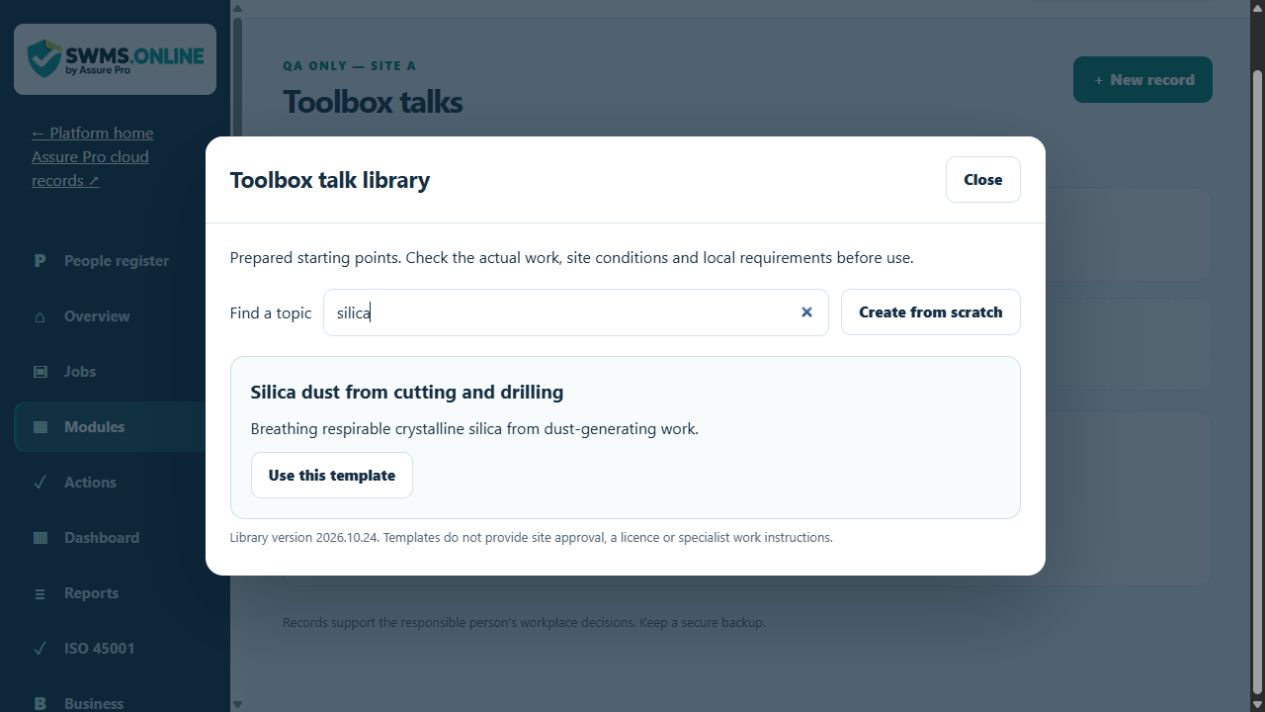
The library provides 14 SWMS, 20 risk assessment and 20 toolbox starting points. Check the actual work and applicable requirements before use. Templates do not replace specialist procedures or required authorisation.
Track safety training
Open Modules → Safety training & competencies. Create the person's training or competency record, add course or licence details, attach evidence and record the actual completion, verification and expiry information. Plan refreshers before evidence expires.
This is a training and competency register. Uploaded evidence needs review; it does not automatically prove competency or deliver an accredited course.
Contact Assurepro
Email support@assurepro.au with your organisation name, device, app version and exact error message. Do not send passwords, verification codes, private links or sensitive safety records.
The guide covers the available owner controls. Full module, access-isolation, device-sync and recovery checks are still being completed. Assurepro must confirm the available scope before operational use.
Enterprise and confidential case access
- Sign in to your Assurepro account and choose your organisation.
- Under Connected workspaces, open Enterprise documents & actions or Confidential injury & recovery.
- An organisation administrator can create an enterprise workspace. Other people must share the access ID shown after signing in so the administrator can assign their workspace role.
- For confidential cases, select Unlock case area. Give your access ID to the case manager. Company membership by itself does not reveal any case.
- Use Lock now when leaving a confidential case. Use Account & sign out to return to the account page and sign out fully.
These protected areas need internet access. Existing records from the older sign-in system require a controlled migration; they are not automatically copied into a new company account. Phone users open these areas in their browser and use their Assurepro account there.